
How to Troubleshoot Ford SYNC Not Working: Fix Bluetooth & Navigation Issues
Posted at Fri, Dec 12, 2025 1:00 PM
A SYNC malfunction can interrupt your entire drive. When your Ford SYNC is not working properly, it can affect your calls, music, and navigation. Many Georgia drivers rely on this system for safe, hands-free control. At Stivers Ford South, we get how stressful these issues can be. And since we work with SYNC systems every day, we have the know-how to pinpoint the cause quickly. This Ford SYNC reset guide gives you simple steps to identify the issue. However, if you need expert assistance, our certified team is always happy to help.
Common Reasons Ford SYNC Is Not Working Properly
SYNC issues usually fall into three main categories: software glitches, phone connection issues, or hardware faults.
Software problems are the most common. You might find that the system freezes, lags, or takes its sweet time loading menus. Older SYNC versions may also struggle with newer smartphones, causing delays with voice commands or navigation prompts. These problems often build gradually, so many drivers don't notice anything is wrong until the system stops responding.
Bluetooth issues are another frequent cause. Things like low power settings, background apps, or even duplicate SYNC profiles from older cars can mess up the Bluetooth connection. Sometimes, the phone and vehicle both try to control audio output, which leads to random dropouts. Consider this when running through Ford SYNC troubleshooting steps.
Hardware issues are less common but create the most severe failures. Damaged USB ports can block phone projections. Loose wiring behind the dashboard can cut power to the screen. A failing SYNC module may reboot randomly or display a blank screen even when everything else in the vehicle works. These problems need diagnostics to confirm and rarely fix themselves.
How to Reset Ford SYNC to Restore Functionality
A soft reset is the quickest way to refresh SYNC when the screen becomes slow or unresponsive. It restarts the processor without erasing your data. On most Ford models, hold the Power button and Seek Right button until the display turns off and reboots. This often clears temporary memory issues or small software crashes.
If the issue returns, you might need to do a complete reset. This deeper reset removes paired phones, stored addresses, call logs, and preferences. It's the best way to get rid of corrupt files or outdated Bluetooth profiles that continue causing trouble.
To complete a factory reset, open Settings, select General, then choose Master Reset or Factory Reset. SYNC will restart and walk you through setup as if the system were new.
Before you go ahead with that reset, make sure to back up any important information, like your home or work addresses. If the system still malfunctions afterward, the issue may be hardware-related. Our experts at Stivers Ford South can perform a complete diagnostic to identify the issue.
If you need help with a master factory reset you can view additional information here.
Fixing Ford SYNC Bluetooth Connection Issues
Bluetooth problems often start with the phone, not the vehicle. Restarting your device resets its Bluetooth controller and closes background tasks that may interfere with pairing. Toggling Bluetooth off and on again can also help your phone rescan for SYNC.
When your connection is acting up, the best move is to delete the old SYNC profile from your phone and take your phone off the SYNC device list. Re-pairing the two devices allows the system to rebuild the connection without leftover data. For many drivers, this single step restores stable pairing.
It also helps to check battery settings. Many phones reduce Bluetooth performance when battery saver mode is active. You might experience audio glitches or dropped calls when the battery is running low. Closing streaming or navigation apps you aren't using can also stabilize the signal.
If you're using multiple accessories, it's a good idea to disconnect your Bluetooth earbuds and smartwatches for a bit. Competing devices might not always give priority to SYNC.
Navigation Problems on SYNC: What to Check First
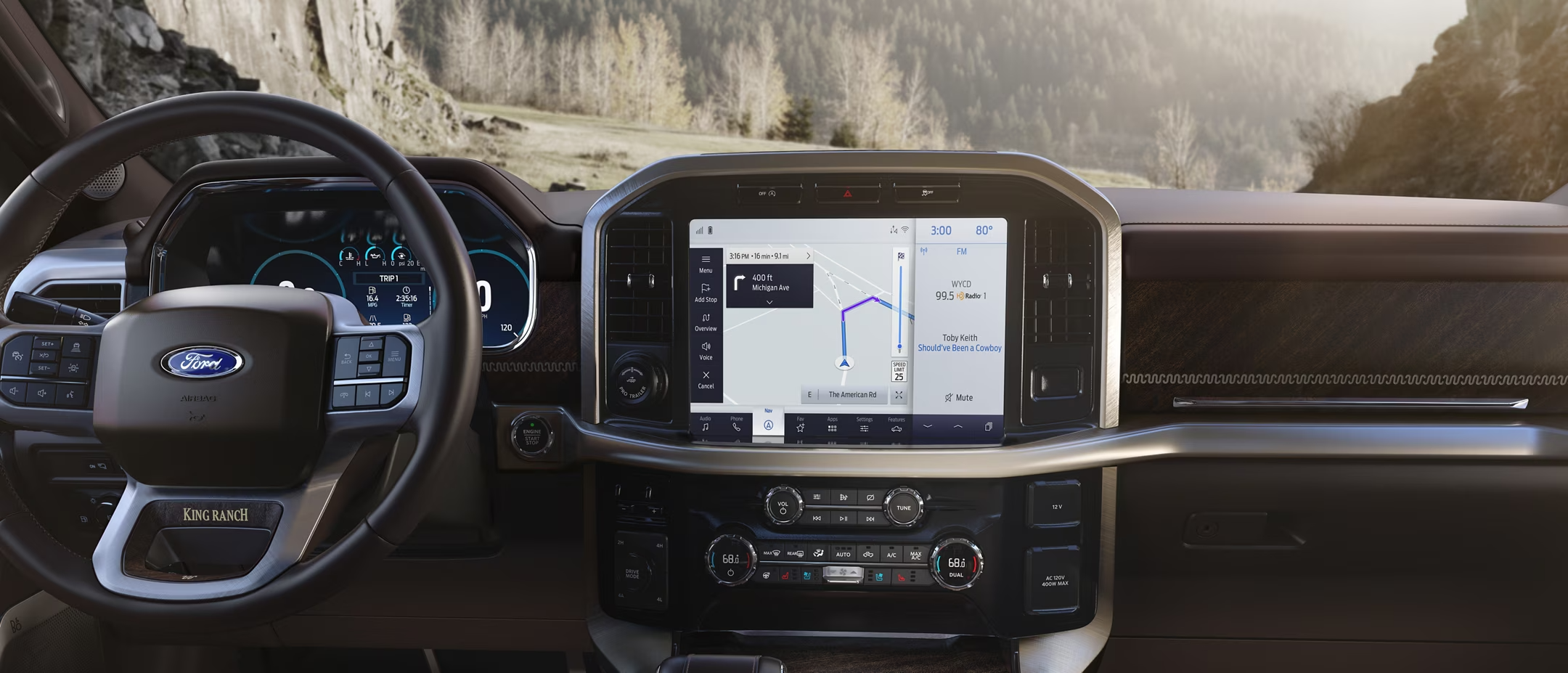
Navigation issues often start with outdated map data or older SYNC software. Updated maps add new streets, traffic patterns, and landmarks, all of which affect route accuracy. If you see missing roads, odd detours, or slow loading times, checking for updates should be your first step.
GPS reception can also cause issues. Tree cover, tunnels, parking decks, or tall buildings can block satellite signals. Moving the vehicle to an open area usually restores proper routing within a minute or two.
Some SYNC versions rely on an SD card for map storage. If your Ford uses one, remove the card, inspect it, and reinsert it securely. A bent or corrupted SD card can freeze up the system or result in incomplete map data.
If navigation issues persist, the problem may be the GPS antenna or the SYNC module. These parts require specialized testing equipment, which our technicians at Stivers Ford South use during diagnostics.
Is Your Smartphone the Problem? How to Reconnect Devices
Many SYNC complaints are caused by smartphone updates. After major iOS or Android changes, Bluetooth settings may shift without warning. A simple restart after an update usually resolves these conflicts.
If the issues persist, perform a clean re-pair. Delete SYNC from your phone, delete your phone from the SYNC menu, and pair them from scratch. This removes leftover Bluetooth files that may have become corrupted.
Also double-check your permissions. This makes sure that SYNC has access to contacts, messages, media, and call history. Features like caller ID and message notifications won't work without these permissions.
Apps that control audio (such as streaming services, navigation apps, or voice assistants) can take priority over SYNC and interrupt your connection. If audio keeps switching away from the vehicle, it's a good idea to close those apps.
When to Visit a Ford Dealer for SYNC Repairs
If you've tried resets, updates, and pairing steps without any luck, the problem runs deeper than just software. Hardware failures can show up as frequent freezing, black screens, disappearing menus, or USB ports that won't charge.
At this point, a dealer visit is the best move. Ford-certified diagnostics can read SYNC-specific error codes that regular scan tools can miss. Whether it's a loose connection, a malfunctioning module, or outdated internal firmware, we'll identify the issue and recommend the right repair.
How to Personalize Ford SYNC 4A
You can personalize your SYNC®* 4A experience using the Settings menu with the instructions in this section of the article.
Creating a Personal Ford SYNC 4A Profile
Important: Your vehicle must be parked and running, and in an open location (e.g., free of overhead foliage, ceilings, etc.).
- Tap the Settings or Home icon on your vehicle's SYNC screen.
- Press Personal Profile.
- Slide the Personal Profiles toggle On.
- Select Add Profile then follow the instructions.
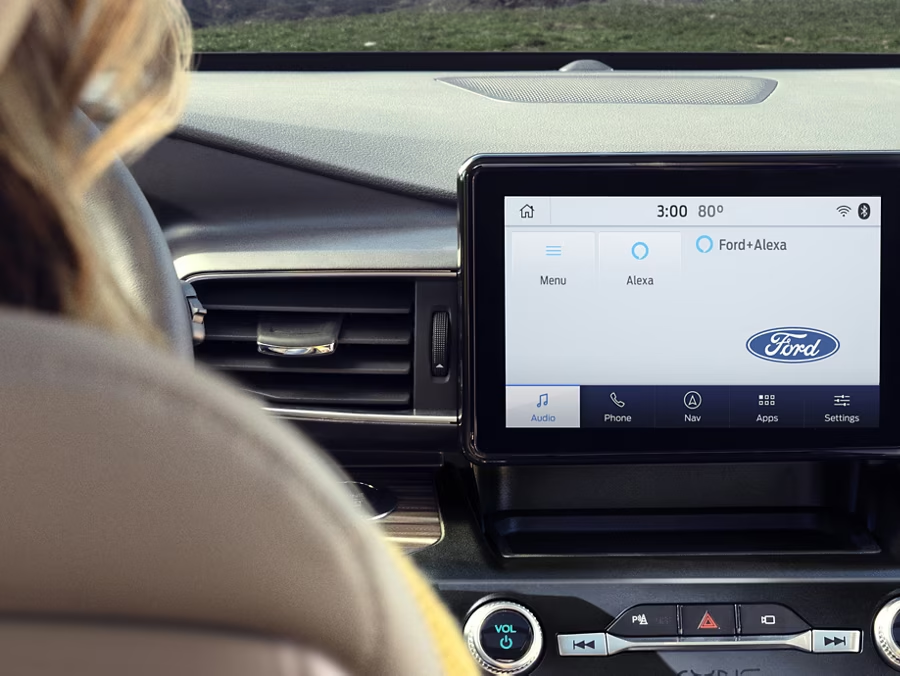
Ford SYNC + Alexa, a New Upgrade to Ford Vehicles.
Ford is rolling out Ford SYNC+Alexa bringing the amazing capabilities of Amazon Alexa from your home to the road. By using the Ford+Alexa app and connecting via SYNC® 3 AppLink®, you’ll have access to Voice Navigation, Traffic Information, over 30,000 Skills, Amazon Prime shopping and can even control your supported Smart Home devices. Stay connected, no matter where you are.
Get Help with Ford SYNC Issues at Stivers Ford South in Union City, Georgia
If your SYNC system is still acting up, our team is ready to assist. We help Ford owners across Georgia restore their technology with accurate diagnostics and reliable repairs. Contact us online or call us at 470-412-5953 to schedule service. We are here to provide fast, friendly, and local support.
Images and Video by OEM