

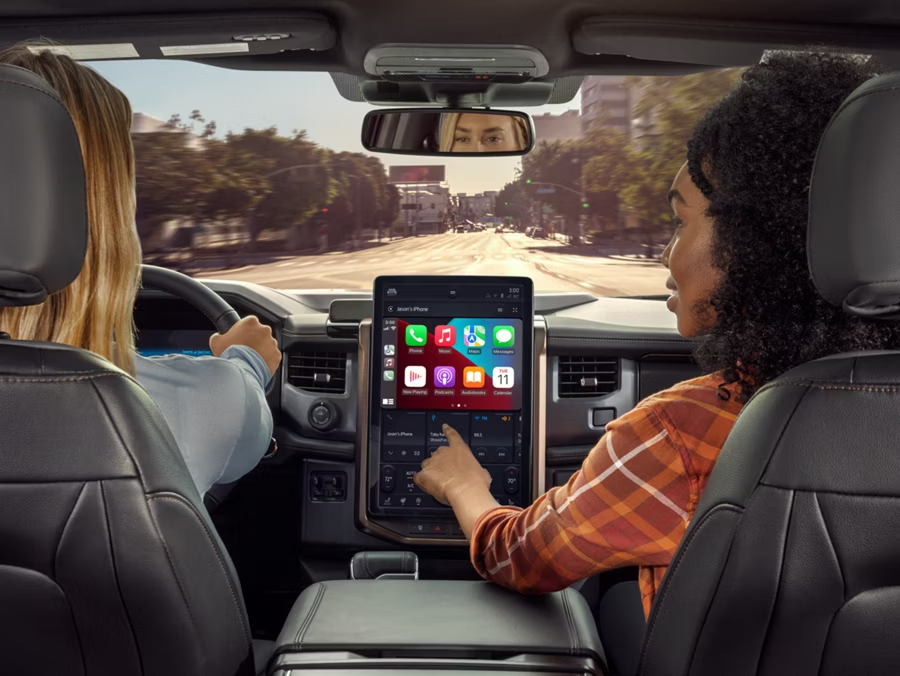
How to Troubleshoot Ford Bluetooth Connectivity
Posted at Wed, Mar 25, 2026 10:08 AM
When your phone won't connect to your Ford's SYNC system, it can turn a routine drive into a frustrating experience. At Stivers Ford South, we help customers resolve Bluetooth connectivity issues daily. Most problems have straightforward solutions you can handle yourself in just a few minutes.
This guide walks you through the most effective fixes for common Ford Bluetooth problems. We've organized these solutions from simplest to most comprehensive, so you can restore your connectivity quickly and get back to enjoying hands-free calls and wireless audio.
Quick Fixes for Common Ford Bluetooth Problems
Before diving into complex solutions, try these quick fixes that resolve most connectivity issues:
For Calls Dropping or Audio Cutting Out:
-
Delete the SYNC connection from your phone, then remove your phone from SYNC
-
Turn Bluetooth off and back on
-
Re-pair your devices
-
Check for interference from Wi-Fi hotspots or other wireless devices
-
Make sure your phone permissions allow SYNC access for calls and audio
For Music Not Playing:
-
Confirm your phone's Bluetooth settings enable media access for SYNC
-
Navigate manually: Phone > Settings > Bluetooth Devices > select your phone > Connect
-
Update your phone's operating system if it's outdated
-
Make sure SYNC is set to Bluetooth as the active audio source
General Connection Issues:
-
Start fresh by restarting both your phone and SYNC system. To restart SYNC 3 or SYNC 4: Press and hold both the Power button (center of volume knob on the touchscreen) and the Seek Right button (on the steering wheel) simultaneously for 10 seconds until the screen goes black, then the system will restart automatically.
-
Check that Bluetooth is enabled on your phone and you're within range
-
Verify your phone isn't connected to other Bluetooth devices
-
Double-check that your phone isn't in airplane mode or do-not-disturb mode
How to Forget and Re-Pair Your Bluetooth Device
When basic troubleshooting doesn't work, completely removing and re-establishing the connection often solves persistent problems. This process clears corrupted pairing data in both your phone and SYNC system.
For SYNC 3 and SYNC 4:
-
Navigate to Settings > Bluetooth on your SYNC screen
-
Select your device from the list
-
Choose Remove or Delete
-
On your phone: Open Bluetooth settings > find your Ford vehicle or SYNC > select Forget
-
Turn off Bluetooth on your phone
-
Restart both your phone and vehicle
-
Turn Bluetooth back on (make sure it's discoverable)
-
On SYNC, select "Add Device" to begin pairing
-
Select your Ford vehicle when it appears on your phone
-
Confirm the passkey matches on both screens
-
Test with a call and audio playback
Important: Always make sure your vehicle is parked when pairing devices for safety.
Updating Your Ford SYNC Software
Outdated SYNC software causes many connectivity issues, especially with newer phones. We recommend keeping your system updated for best performance.
SYNC 4 (standard in most 2025 Ford models including F-150, Mustang Mach-E, Explorer, and Edge):
-
Supports over-the-air updates via Wi-Fi
-
Check Settings > General > Software Updates
-
Follow on-screen prompts to download and install
SYNC 3 Updates:
-
Can update via Wi-Fi or USB drive
-
Visit Ford's SYNC update page and enter your VIN Download the update file to a properly formatted USB drive: SYNC 3: Use exFAT format - SYNC 1 and SYNC 2: Use FAT32 format
-
For USB updates: Use an 8GB to 32GB USB drive formatted to exFAT (not FAT32)
-
Download the update file to your formatted USB drive
USB Update Process:
-
Insert the USB drive into your vehicle's USB port
-
Turn on the ignition (engine can remain off)
-
SYNC will detect the update automatically
-
Follow on-screen prompts
-
Allow up to 45 minutes for installation to complete
-
Don't remove the USB drive or turn off the vehicle during installation
-
Re-pair your Bluetooth devices after the update finishes
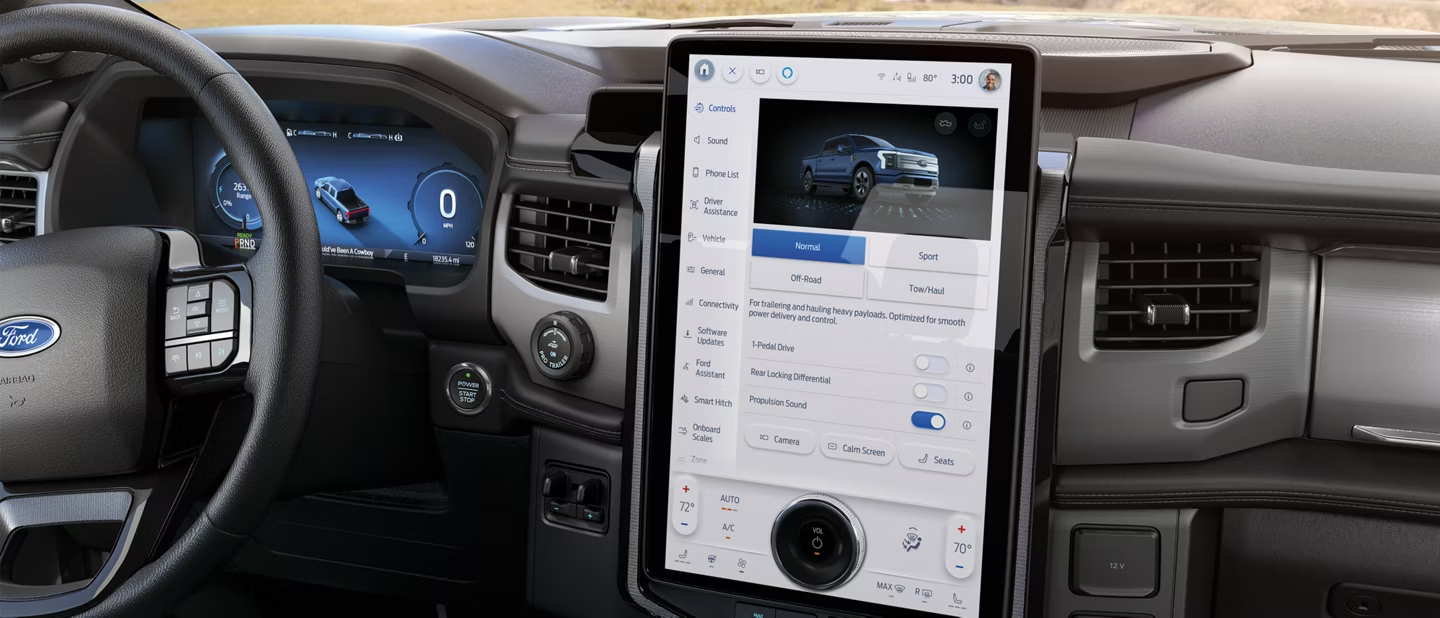
Performing a Master Reset on SYNC
When other solutions fail, a master reset returns your SYNC system to factory defaults. This erases all saved settings and paired devices.
Master Reset Process (SYNC 3 and SYNC 4):
-
Navigate to Settings > General > Master Reset
-
Read the confirmation message about returning to factory defaults
-
Select Continue
-
The system will turn off and the screen will go blank
-
Give it several minutes for the reset to complete
-
The system will restart automatically
-
Re-pair your phone following the pairing steps above
Fixing Audio Routing Issues in Your Ford
Audio routing problems happen when your SYNC system doesn't send sound to the correct output. Even with a successful Bluetooth connection, audio might not play through your speakers.
Audio Routing Solutions:
-
Toggle Bluetooth off and on in both your phone and SYNC
-
On SYNC: Phone > Settings > Bluetooth > Off > On
-
Manually select Bluetooth as your audio source (press the Source or Media button until Bluetooth audio appears)
-
Check that SYNC has permissions for contacts, calls, and media (especially important for Android devices)
-
Start media playback on your phone before expecting audio to stream
-
Clear old paired devices from SYNC if your device list is full
iOS vs. Android Differences:
-
iOS devices typically handle permissions automatically during pairing
-
Android devices may require manual permission adjustments in Settings > Apps > Bluetooth permissions
-
Some Android manufacturers use different settings paths, so check your phone's user manual if needed
Schedule a Connectivity Diagnostic at Stivers Ford South
If you've tried these solutions and still experience connectivity issues, our certified Ford technicians can help. At Stivers Ford South, we use professional diagnostic tools that check SYNC software, pairing logs, and Bluetooth modules to identify problems that aren't apparent through basic troubleshooting.
Our team stays current with Ford technical service bulletins and can install dealer-level updates that may not be available through consumer channels. Whether your issue requires a simple software update or more extensive diagnostics, we'll get your connectivity working properly.
Schedule your connectivity diagnostic appointment today, or contact our service team with questions about your Ford's Bluetooth system.
Images by OEM